How to Connect Your Shopify Store with Girofeeds
Connect Shopify via its GraphQL API and sync your products in minutes.
Steps
Create a new provider in Girofeeds
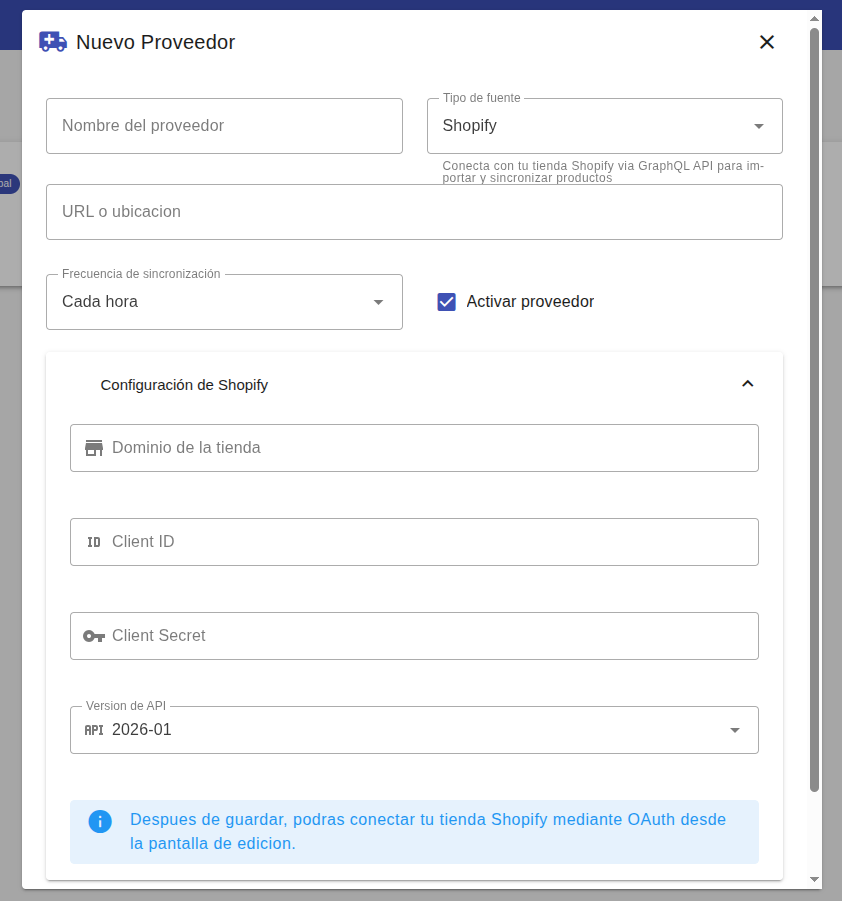
In Girofeeds, go to the Providers section and click "New Provider". The product source configuration form will open.
Choose Shopify as the source type
Enter the provider name and, under "Source type", select Shopify (connects with your Shopify store via GraphQL API to import and sync products). Add the URL or location if applicable, choose the sync frequency (e.g. "Every hour") and check "Activate provider".
Prepare the credentials in Shopify
In your Shopify admin, go to Settings → Apps and sales channels → Develop apps and create a custom app with product read permissions. When created you’ll get the Client ID (API key) and the Client Secret.
Fill in the “Shopify configuration”
In the “Shopify configuration” block enter: the store Domain (your-store.myshopify.com), the Client ID, the Client Secret and the API Version (e.g. 2026-01).
Save and connect via OAuth
Save the provider. You’ll then be able to connect your Shopify store via OAuth from the edit screen, securely authorizing access.
Sync your catalog
With the connection in place, Girofeeds will import your Shopify products at the chosen frequency. From there you can optimize the catalog, fix Merchant Center errors and prepare your feeds.